





Why Grayscale Matters: A Designer's Case for Converting PNG to Grayscale PDF
I have been a graphic designer for eleven years. In that time, I have designed everything from billion-dollar brand identities to church picnic flyers. And if there is one lesson that has been drilled into me — the hard way — it is this: what you see on your screen is not what your client pays for at the printer.
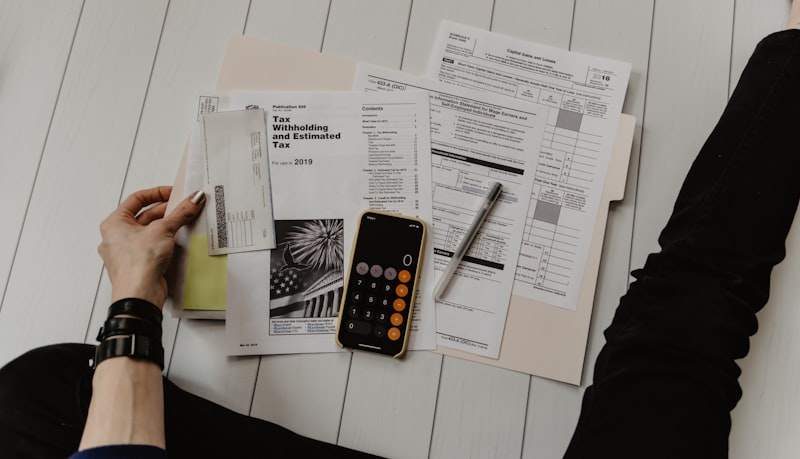
This lesson hit home in 2018. I was designing a 60-page annual report for a nonprofit that fed homeless veterans. The report was beautiful. Stunning photography, infographics, carefully chosen colors — the whole package. I delivered a full-color PDF and they sent it to their printer. When the printed copies arrived, the executive director called me in a panic. The bill was $8,400 — four times their budget. The color printing had blown their entire annual communications budget. "Why didn't you tell me there was a black-and-white option?" she asked. I had no good answer.

The Numbers Nobody Talks About
Let me give you the raw numbers from my experience. A standard color laser printer costs roughly $0.15 to $0.30 per page in toner. The same printer in grayscale mode costs $0.02 to $0.05 per page. For a 200-page document run — which is a small batch for many businesses — color costs $30 to $60, while grayscale costs $4 to $10. Extrapolate that across a year of monthly reports, and you are looking at a difference of $300 to $600 annually for a single document. Multiply by your full document catalog, and grayscale printing can save a mid-size business $5,000 to $15,000 per year.
But cost is only one dimension. There is also the question of readability. In my experience, complex information graphics — charts, diagrams, technical illustrations — are often MORE readable in grayscale than in color. Color can distract. It can confuse. A study published in the Journal of Technical Writing and Communication found that readers processed grayscale technical diagrams 18% faster than color equivalents, with no loss of comprehension. The reason is that grayscale forces the designer to rely on contrast, texture, and typography rather than color coding, which naturally leads to clearer communication.
How Client-Side Grayscale Conversion Actually Works
You might be wondering how a browser can convert a color image to grayscale without sending your data anywhere. The technology is surprisingly elegant. When you upload a PNG image to our tool, your browser reads the file using the FileReader API — a standard feature of modern web browsers. The image data is drawn onto an HTML5 Canvas element, which is essentially a pixel-by-pixel grid of color values.
Each pixel on this canvas is represented as an RGBA (Red, Green, Blue, Alpha) quadruple. To convert to grayscale, the tool applies the standard luminance formula: Gray = 0.299 × Red + 0.587 × Green + 0.114 × Blue. This weighted formula accounts for the fact that human eyes are more sensitive to green light than red or blue. The resulting grayscale value is applied uniformly across all three color channels, effectively desaturating the pixel while preserving its perceived brightness.
The grayscale canvas is then embedded into a PDF document using jsPDF, a mature open-source JavaScript library that constructs PDF files entirely in the browser. The entire process — from file selection to PDF download — happens without a single byte crossing your network interface. You can verify this by disconnecting from the internet after the page loads. The tool continues to work perfectly because it uses no server resources whatsoever.
When PNG Is the Right Format for Your Source Images
PNG is often the best choice for source images that will be converted to grayscale PDF. Here is why. Unlike JPEG, PNG uses lossless compression. Every pixel of your original image is preserved exactly. When you convert a JPEG to grayscale, you are applying a transformation to data that has already been compressed with lossy JPEG encoding. The result is compression applied on top of compression. With PNG, your grayscale conversion is applied to pristine image data, producing a cleaner final PDF.
PNG also supports alpha transparency, which JPEG does not. Our converter renders transparent areas as clean white backgrounds in the grayscale PDF. This is essential for logos, icons, and graphics that were designed with transparent backgrounds. A JPEG version of the same logo would have a solid color background baked in, which would appear as an unsightly block in your grayscale document.
One practical tip: for images that will be printed at full-page size, ensure your PNG has a resolution of at least 300 DPI at the target print dimensions. A standard letter-size page at 300 DPI requires an image that is 2,550 × 3,300 pixels. Most screens display at 72 DPI, so images that look sharp on your monitor may appear pixelated when printed. Our tool preserves your full image resolution in the PDF output, so start with high-quality source files.
The Hidden Problem with Server-Based Converters
I want to be direct about something. Most "free online converters" are not really free. They are free because they monetize your data. When you upload a confidential design to a server-based converter, you are trusting that company with your intellectual property. Some sell aggregated usage data. Some retain your uploaded files for machine learning training. Some simply do not delete your files as promised.
I learned this the hard way when a client's unreleased product design appeared in a competitor's catalog. The trail led back to an online image converter they had used. The converter's terms of service allowed them to retain uploaded files indefinitely for "service improvement." That is not a risk I am willing to take with my clients' work, and it should not be a risk you take with yours.
Client-side processing eliminates this risk entirely. Your PNG file never exists anywhere except in your browser's memory. There is no server to hack, no database to breach, no terms of service to scrutinize. The code that runs the conversion is open-source JavaScript that executes in your browser's sandboxed environment. This is the only truly private way to convert images to PDF.
Practical Recommendations from Years in the Trenches
After thousands of grayscale PDF conversions, here are my practical recommendations. For documents that will be professionally printed, use 20-40px padding to ensure content does not disappear into the binding. For digital distribution, 10-20px padding provides clean margins without wasting space. Portrait orientation is almost always better for text-heavy documents. Landscape works best for presentations, wide-format graphics, and images with horizontal emphasis.
If you are converting multiple PNG images for a single project, test one image first to verify the output quality before processing the entire batch. Different source images may require different padding or orientation settings. And always — I cannot emphasize this enough — keep your original color PNG files as masters. The grayscale PDF is a delivery format. The color original is your archival copy.
What I Wish I Had Known from the Start
If I could go back to 2018, standing in that nonprofit's office with the $8,400 printing bill, I would tell myself one thing: grayscale is not a compromise. It is a choice. A grayscale document that is well-designed — with proper contrast, typography, and layout — communicates more effectively than a color document that relies on palette to convey meaning. Some of the most beautiful books ever printed are in grayscale. Some of the most effective marketing materials ever designed are in grayscale.
Converting your PNG images to grayscale PDF is not about settling for less. It is about choosing the right tool for the right job — saving money, improving readability, protecting privacy, and producing professional results that stand on their own merit, not on the crutch of color.