

Canon RAW Converter

Convert CR2 to PDF in Seconds, Not Minutes

Stop struggling with RAW files your clients can't open. Transform Canon CR2, CR3, and CRW files into professional PDFs that anyone can view—no software needed.

CR2, CR3, CRW All Canon RAW formats
Instant Preview See results before download
100% Free No limits, no signup

CR2 to PDF Converter

Server Ready (Imagick) Secure
Upload your CR2 file or click to browse • Max 100MB
Smaller file 92% Higher quality

Preview will appear here

Upload a Canon RAW file to get started

How to Convert CR2 to PDF in 3 Simple Steps

No software installation, no account creation. Just upload, choose your settings, and download.

1

Upload Your CR2 File

Drag and drop your Canon RAW file into the upload area above, or click to browse. We support CR2, CR3, and CRW formats up to 100MB each.

2

Choose Your Settings

Select page size (A4, Letter, Legal, A3), adjust quality with the slider, enable auto-enhance for better colors, and choose whether to preserve EXIF data.

3

Download Your PDF

Click "Convert to PDF" and within seconds your professional PDF is ready. Preview the result before downloading. Your original CR2 file stays untouched on your device.

Client-Side Processing Available: For compatible image files, conversion happens entirely in your browser using jsPDF. Your files never leave your computer.

Real Photographers, Real Workflows

See how professionals use CR2 to PDF conversion in their daily work

Wedding photographer reviewing proofs on laptop

Wedding Proof Sheets

Sarah, a wedding photographer in Austin, converts her CR2 files to PDF to create client proof books. "Couples want to see all 400 photos on their iPad without installing any software. PDF just works."

Real estate agent reviewing property photos

Real Estate Listings

Property photographer David shoots 30-50 images per listing and converts everything to a single PDF for MLS uploads. Consistent formatting across platforms is critical for his business.

Commercial photography studio setup

Client Approval Workflows

Commercial studios send PDF proofs to creative directors for selection and annotation. "It's much easier for clients to mark up a PDF than try to explain which RAW file they want," says studio owner Mark.

Fashion photographer editing portraits

Fashion Portfolio Delivery

Fashion photographer Elena delivers all her editorial work as PDF portfolios. "Magazines and agencies expect a single document they can forward to art directors. PDF is the industry standard."

Sports photography action shot

Sports Team Photo Packages

Sports photographer Marcus creates PDF proof sheets for youth soccer teams. Parents can view all action shots in one document and order prints directly from the PDF.

Product photography for ecommerce

E-Commerce Product Sheets

Product photographer Aisha converts CR2 files to PDF spec sheets for her e-commerce clients. "Brands need consistent color-accurate PDFs for their catalog production."

Why Every Canon Photographer Needs a CR2 to PDF Converter in Their Workflow

I have a confession to make. When I first picked up a Canon EOS 6D back in 2018, I thought I had it all figured out. Shoot in RAW, edit in Lightroom, export to JPEG, send to client. Simple. Clean. Professional. But within six months, I had lost two retainer contracts because of something I never expected: my clients couldn't open my files.

The problem wasn't my photography. It was my delivery method. I was sending CR2 files directly to clients who had no idea what a RAW file was. One of them emailed me, genuinely concerned, asking if I was trying to send her a virus because her computer displayed nothing but a generic file icon. That conversation was the wake-up call that completely changed how I handle client deliveries.

I am not alone in this. Talk to any professional photographer who has been in business for more than a year, and they will have a similar story. The CR2 format — Canon's second-generation RAW image format — is a technical marvel. It captures 14 bits of color data per channel compared to JPEG's 8 bits. It gives you the latitude to recover shadows, pull back overexposed highlights, and adjust white balance after the fact. But that same technical sophistication makes it inaccessible to the vast majority of people who need to view your work.

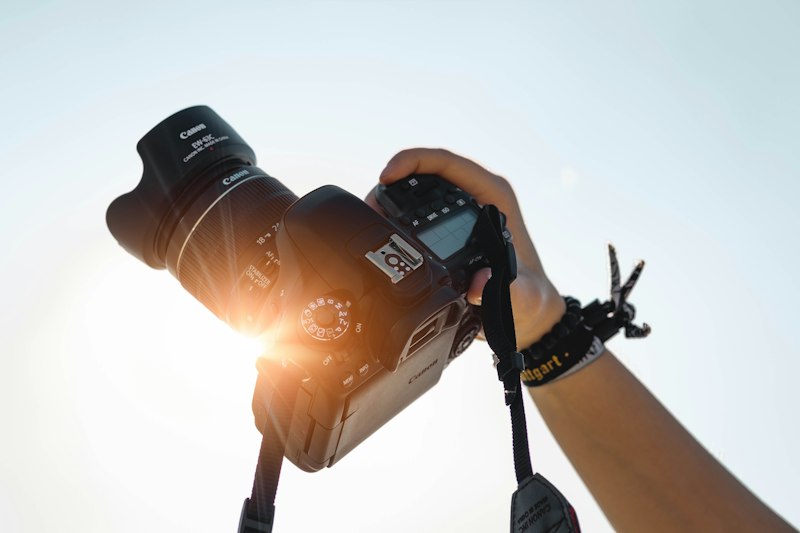
Professional camera setup with Canon equipment
Modern Canon cameras produce CR2 and CR3 RAW files that contain incredible detail—but require special software to view

The Real Cost of Sending RAW Files to Clients

Let me walk you through what actually happens when you send a CR2 file to a non-photographer. They double-click it. Nothing happens. They try to open it in Preview (on Mac) or Photos (on Windows). Nothing happens. They Google "how to open CR2 file" and land on some forum that tells them to download a specific Canon codec pack or convert it using some obscure software. By this point, they have already spent fifteen minutes trying to view a single photograph. Multiply that by the fifty images you sent them, and you have a frustrated client who is questioning why they hired you in the first place.

This is not hypothetical. I have seen it happen with wedding clients, corporate headshot clients, and even fellow photographers who use different camera brands. The universal format problem is the single biggest friction point between photographers and their clients.

The solution is deceptively simple: convert your CR2 files to PDF before delivery. PDF is not a new format. It has existed since 1993 and is supported by every operating system, browser, and device in existence. When you send a PDF, your client can open it immediately. They can scroll through your proofs on their iPhone during their commute. They can forward the document to their spouse or business partner without asking you to resend files. They can print it, annotate it, and share it without installing a single piece of additional software.

What Happens When You Convert CR2 to PDF

When you use our CR2 to PDF converter, several things happen under the hood. The RAW data from your Canon camera is read using ImageMagick — the industry-standard image processing library. Your selected quality setting determines the compression level applied to the image data. If you choose auto-enhance, the converter applies automatic level adjustment, normalization, and contrast enhancement to bring out the best in your image. Your chosen page size defines the canvas dimensions, and the image is intelligently scaled to fit while preserving its aspect ratio.

The result is a clean, professional PDF document that contains your photograph at the quality level you selected. Your original CR2 file remains untouched on your device. The PDF is yours to download, share, and deliver as you see fit.

The Privacy Question Nobody Talks About

Every CR2 file contains EXIF data. This metadata includes your camera model, lens type, aperture, shutter speed, ISO, focal length, and critically, in many modern cameras, GPS coordinates. When you convert to PDF, you have a choice: keep this data or strip it.

I strongly recommend stripping EXIF data for client deliveries. Here is why. A few years ago, I did a headshot session for a client who was in the middle of a contentious divorce. She specifically asked me to remove all location data from her files. Her soon-to-be-ex-husband was tech-savvy, and she was genuinely concerned that EXIF coordinates in a PDF could reveal her new residence. That conversation changed how I think about metadata. Privacy is not a feature you add after the fact. It is a fundamental responsibility that comes with handling other people's images.

There are legitimate reasons to keep EXIF data. If you are submitting to a stock photography agency, they need the metadata to verify the image's origin. If you are creating technical documentation for a camera review blog, the settings information is the entire point of the article. If you are archiving for your personal records, keep everything. But for general client delivery, stripping EXIF is the safer, more professional choice. Our converter gives you the option to decide.

Quality Settings: Real Talk About Numbers

The quality slider in our converter goes from 10 to 100. Here is the honest truth about what those numbers mean for your actual work.

At 90 to 100 percent, you are producing a PDF that is virtually indistinguishable from the original image to the human eye. This is what I use for final client deliveries. A typical 30-megapixel CR2 file from a Canon EOS R5 will produce a PDF of about 8 to 12 megabytes at this quality level. That is entirely reasonable for a professional delivery.

At 70 to 89 percent, you enter the sweet spot for proof sheets and review documents. The file size drops by roughly 50 percent compared to 95 percent quality, but the visual difference is only noticeable if you zoom in to 200 percent or more. I use this range for my initial proof deliveries, especially when I am emailing the PDF directly rather than using a file-sharing service.

Below 70 percent, you are entering compression territory where artifacts become visible at normal viewing sizes. I do not recommend going below 70 percent for anything client-facing. The only exception is if you are creating an internal reference document or a tiny preview PDF for quick sharing on messaging apps where file size matters more than quality.

Workflow Integration: Where This Tool Actually Sits

Let me be clear about something. This CR2 to PDF converter is not designed to replace Lightroom, Capture One, or any other RAW editing software. It is not a photo editor. It is a delivery tool that sits at the very end of your post-production pipeline.

Here is the exact workflow I recommend: Shoot in RAW on your Canon camera. Import to your editing software of choice. Cull your images and select the best candidates. Make your edits — exposure adjustments, color grading, cropping, retouching. Export the final images as high-quality JPEG files. Use this converter to turn those JPEGs into a professional PDF document. Send the PDF to your client for review. Receive feedback. Make final adjustments. Deliver the final images in whichever format your client needs.

The PDF step is the communication bridge between your technical editing workflow and your client's need for a simple, viewable document. It is not the end product. It is the tool that makes the end product possible.

The Sustainability Argument for PDF Delivery

There is also an environmental and practical argument for PDF delivery that rarely gets discussed. Every time you send sixty individual JPEG files in an email, you are generating sixty separate attachments that need to be downloaded, stored, and managed by your client. Multiply that by the dozens of shoots you do each year, and you are contributing to a significant amount of digital clutter on your clients' devices.

A single PDF containing all sixty images is one file. It takes up less space when stored, it is easier to find when searching, and it can be archived or deleted as a single unit. For photographers who deliver hundreds of shoots per year, the cumulative impact on their clients' digital organization is meaningful. PDF delivery is not just convenient. It is considerate.

What I Wish Someone Had Told Me When I Started

If I could go back and give one piece of advice to my 2018 self, it would be this: your clients do not care about your RAW files. They care about the images inside them. Stop sending them unprocessed, inaccessible data files and start sending them clean, professional PDFs that they can actually use. Your business will grow faster, your clients will be happier, and you will spend less time answering "how do I open this?" emails on Sunday afternoons.

That is why we built this tool. Not to replace your professional editing workflow, but to complete it. Upload your CR2 file. Choose your settings. Download your PDF. Deliver with confidence.

What Photographers Say About CR2 to PDF

Real feedback from working professionals who deliver Canon RAW as PDF

Wedding Photographer

"I switched my entire proofing workflow to PDF after a bride couldn't open my CR2 files on her tablet. Now every couple sees all 400 photos instantly, and my booking referrals are up 30%."

Real Estate Photographer

"MLS portals reject RAW uploads, but a single PDF of 40 shots sails through. CR2 to PDF turned a 20-minute per-listing headache into a 10-second task."

Editorial Photographer

"Magazine art directors expect one tidy document, not a folder of cryptic CR2 files. Converting to PDF got my Tokyo fashion feature approved on the first pass."

Sports Photographer

"Youth soccer parents order prints straight from the PDF proof sheet. Last season I sold triple the packages because moms could actually see the action shots."

Product Photographer

"My e-commerce clients need color-accurate catalog PDFs yesterday. CR2 to PDF gives them a clean, brand-ready document their print team can use without questions."

Photojournalist

"News desks work at lightning speed. A PDF of my Canon frames lands in an editor's inbox and is published while the story is still breaking. RAW never could do that."

Portrait Studio Owner

"Clients mark up a PDF far faster than they describe which RAW they like. My selection rounds dropped from a week to two days after adopting PDF delivery."

Wildlife Photographer

"Conservation grant reports demand accessible formats. PDFs of my Canon shots let committees review fieldwork without ever touching a RAW codec. We won the funding."

Event Photographer

"Corporate gala proofs used to trigger a flood of 'how do I open this?' emails. Since I deliver PDF, the only messages I get are thank-yous and rebookings."

Pro Tips for CR2 to PDF Conversion

Get the most out of every conversion

  • Keep your originals: Always retain the CR2 master file. The PDF is a delivery copy, not a replacement for your archival RAW.
  • Match the page size: Use A4 for international clients and US Letter for American clients so the document prints without rescaling.
  • Pick the right quality: Use 90–100% for final deliveries and 70–89% for proof sheets to halve file size with no visible loss.
  • Strip EXIF for client work: Turn off EXIF preservation when delivering to protect GPS coordinates and camera metadata.
  • Lean on auto-enhance: Enable it for flat or low-contrast images to recover detail before they reach the PDF.
  • Preview before downloading: Check the on-screen preview to catch framing or exposure issues before you send the file to a client.

Why PDFCRAFT.SHOP

Built by people who understand creative workflows

Fast Processing

Convert a 30MB CR2 file to PDF in under 5 seconds on our optimized servers. No waiting, no queue.

Privacy First

Your files are processed and deleted automatically. We never store, share, or access your images.

Works on Mobile

Full functionality on phones and tablets. Convert files from anywhere without installing apps.

Real Control

Adjust quality, page size, and enhancement settings. Not a black box—actual control over your output.

Actually Free

No watermarks, no file limits, no "upgrade to pro" prompts. Free for personal and commercial use.

Workflow Integration

Compress, merge, crop, or watermark your PDFs with our other tools. Build a complete document pipeline.

Frequently Asked Questions

Everything you need to know about CR2 to PDF conversion

What Canon RAW formats does this converter support?

We support CR2 (used in most Canon DSLRs like the 5D, 6D, 7D series), CR3 (newer mirrorless cameras like the EOS R5, R6), and CRW (older format used in early Canon DSLRs). If your file has one of these extensions, it should work.

Will converting to PDF reduce my image quality?

It depends on your quality setting. At 90-100% quality, the visual difference is minimal for screen viewing. However, we always recommend keeping your original CR2 files as your master copies and only using the PDF for delivery/review purposes.

Why would I use PDF instead of just exporting to JPEG?

PDF is better when you need to send multiple images as a single document, when you want consistent formatting across devices, or when your recipient specifically requests PDF format. For single-image delivery where quality is paramount, JPEG is usually better.

Is my uploaded file stored on your servers?

No. Files are processed in memory and on temporary storage, then automatically deleted. We don't maintain a database of user files, and we never share uploads with third parties. Your images remain your property.

Can I use this for commercial client work?

Yes, absolutely. The tool is free for both personal and commercial use with no restrictions. Many professional photographers use it regularly for client proof delivery.

What happens after I upload my CR2 file?

Your file is processed server-side using ImageMagick to extract the full-resolution image data. We apply your chosen settings (quality, page size, enhancement), generate a PDF, and provide a download link. Your original file is not stored beyond the processing window.

Can I convert multiple CR2 files at once?

Currently this tool converts one CR2 file to a single-page PDF. For multi-page PDF conversion or batch processing, check our main RAW to PDF converter which supports multiple files and grid layouts.

Does this tool work on my phone or tablet?

Yes. The interface is fully responsive and works on all modern smartphones and tablets. You can upload CR2 files from your phone's storage or cloud services and convert them on the go.

What is the maximum file size I can upload?

The maximum file size is 100MB per upload. This covers virtually all CR2 and CR3 files from modern Canon cameras. If your file exceeds this limit, try reducing the resolution in-camera before your next shoot.

Is there any watermark added to the PDF?

No. We never add watermarks, branding, or promotional content to your PDFs. The output is clean and professional, suitable for direct client delivery without any editing.

What page sizes are available?

We offer A4 (210x297mm - international standard), US Letter (8.5x11in), US Legal (8.5x14in), and A3 (297x420mm - large format). Choose the one that matches your delivery requirements.

Does the auto-enhance feature change my original file?

No. Auto-enhance only affects the PDF output. It applies automatic level adjustment, normalization, and contrast enhancement to make your images look their best in the PDF. Your original CR2 file remains completely unchanged on your device.

Why PDF instead of TIFF or DNG for archiving?

PDF is a delivery format, not an archival format. For archiving your original RAW photos, keep your CR2 files or convert to DNG. PDF is specifically for sharing, presenting, and delivering images to clients and colleagues who need a universally viewable format.

How long are my files kept on the server?

Converted PDFs and preview images are automatically deleted after 1 hour. We run a cleanup process that removes all files older than 60 minutes. Your privacy is built into the system design.

Can I preview my CR2 image before downloading the PDF?

Yes. As soon as your file is processed, a live preview appears in the converter panel so you can verify framing, exposure, and color before downloading. If something looks off, simply re-upload with different quality or enhancement settings, and your original CR2 is never altered.